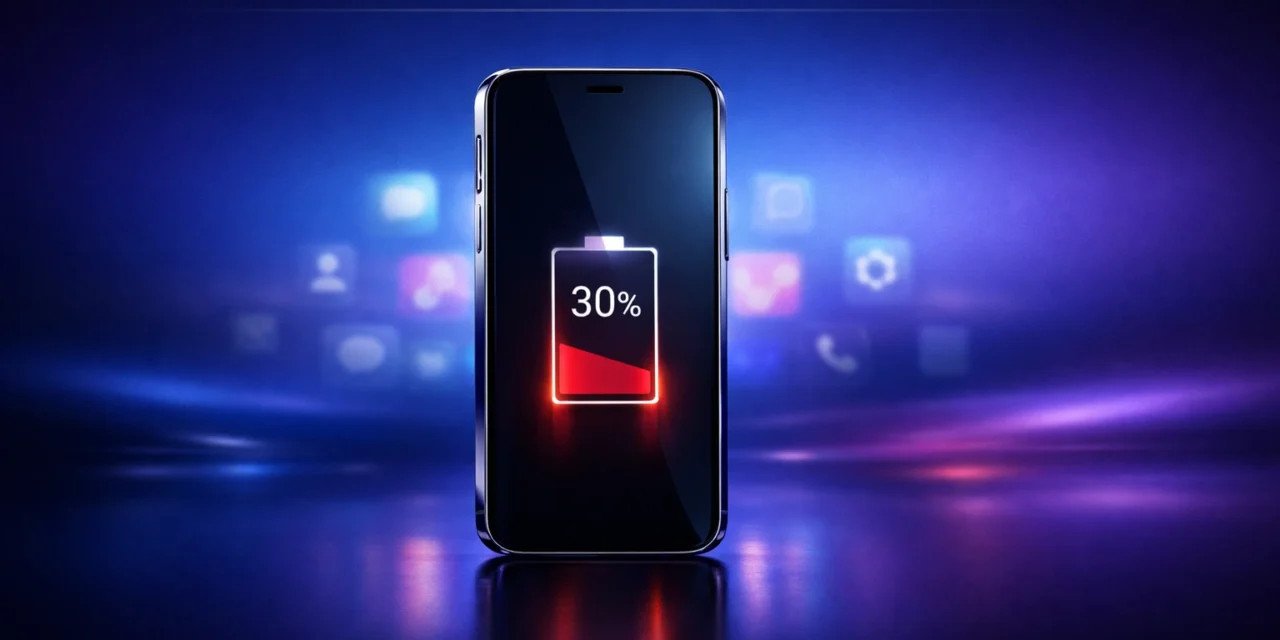
Your phone was at 80% when you left the house this morning. By noon it was at 30%. Nothing had changed — except that a handful of apps spent the entire morning running code in the background you never asked them to run.
Introduction
Battery drain is one of the most frustrating smartphone problems because it’s invisible. You’re not doing anything, the screen is off, the phone is in your pocket — and it’s losing 5% every hour. The culprit is almost always background app activity: apps refreshing data, tracking location, syncing content, and running analytics processes without your knowledge. This post identifies the specific app categories most likely to drain your battery, shows you how to check which apps on your phone are guilty, and gives you the settings to reclaim hours of daily battery life.
How to Find Your Actual Battery Villains
Before blaming apps generally, find out which specific apps on your phone are the real drain. Both iOS and Android include built-in battery usage reports.
- On iPhone: Go to Settings → Battery. Scroll down to see battery usage by app over the last 24 hours or 7 days. Pay attention to the “Background Activity” label — any app showing significant background activity is consuming battery while you’re not actively using it.
- On Android: Go to Settings → Battery → Battery Usage. You’ll see apps ranked by percentage of battery consumed. Tap any app to see whether the drain came from screen-on use or background activity.
Identify any app consuming more than 10% of your battery without proportional screen time. Those are your primary targets.
The 7 App Categories That Drain Battery Hardest
1. Social Media Apps
Facebook, Instagram, TikTok, and Snapchat are consistently among the heaviest battery drains on any device. They combine multiple battery-intensive behaviours: constant background refresh, aggressive location tracking, autoplay video, and persistent notification polling. Facebook alone has been documented running dozens of background processes even when you haven’t opened it in hours.
- Fix: Turn off background app refresh for social media apps entirely. On iPhone: Settings → General → Background App Refresh → toggle off for each social media app.
2. Navigation and GPS Apps
Google Maps, Apple Maps, and Waze use GPS continuously — the single most battery-intensive hardware function on your phone, consuming as much as 5% battery per hour when active. Many apps request location access and then use it continuously even when you’d expect them to check it rarely.
- Fix: Set location permissions to “While Using App” rather than “Always” for all navigation and mapping apps. Check apps you haven’t reviewed recently — many request “Always” access by default during setup.
3. Email Apps
Email clients set to check for new mail every 5 minutes are making 12 server connections per hour. The default “Push” setting on most email apps is even worse — it maintains a persistent connection to the mail server, preventing the phone’s radio from entering low-power sleep states.
- Fix: Change email fetch from “Push” to “Fetch” and increase the interval to 30 minutes or manual. On iPhone: Settings → Mail → Accounts → Fetch New Data.
4. Streaming Music and Podcast Apps
Spotify, Apple Music, and podcast apps work the processor hard during active playback. The hidden drain comes from their caching behaviour: they pre-download content in the background to ensure seamless playback. This runs even when you’re not listening.
- Fix: Turn off “Download over cellular” for streaming apps. Download playlists manually over WiFi rather than letting the app manage it automatically.
5. Fitness and Health Tracking Apps
Apps connected to wearables maintain continuous Bluetooth connections and periodic data syncs throughout the day. Apps that also use the motion co-processor for step tracking add another layer of continuous low-level activity.
- Fix: Review which health apps have motion and fitness permissions. Remove access for any app you don’t actively use. For wearable sync apps, disable background sync and allow manual sync only.
6. Shopping and Price Tracking Apps
Apps like Amazon and eBay run aggressive background processes for deal alerts, personalised notifications, and inventory tracking. Amazon’s app in particular has been noted for unusually high background activity relative to how often most people actively use it.
- Fix: Disable notifications for shopping apps you don’t need real-time alerts from. Turning off background app refresh stops the worst of it.
7. Poorly Optimised Third-Party Apps
Some apps — particularly smaller indie apps, older apps not updated for recent OS versions, and certain browser-based apps — contain code that runs inefficiently, creating wakelocks: a condition where the app prevents the processor from entering a low-power state.
- Fix: Check your battery usage screen for apps appearing in the top 5 that you use infrequently. Update all apps regularly. Delete any app you haven’t opened in 30 days.
Five More Settings That Make an Immediate Difference
- Location Services audit: Set anything on “Always” to “While Using App” — or revoke it entirely for apps that should never need location (flashlights, games, recipe apps).
- Background App Refresh: Turn this off globally if you’re aggressive about battery life. This single setting has the biggest impact of any non-screen setting.
- Push notifications cull: Every notification requires a brief radio wake. Turn off alerts from any app you don’t genuinely need real-time notifications from.
- WiFi Calling and 5G settings: Switch to “5G Auto” (iPhone) which drops to LTE when 5G isn’t providing meaningful benefit — keeping 5G active in poor coverage areas drains battery fast.
- Reduce screen refresh rate: Screens running at 120Hz use noticeably more battery than 60Hz. Enable standard refresh rate mode when battery is low.
Frequently Asked Questions
1.Why does my battery die so fast even when I’m not using my phone?
The most common cause is background app activity. Social media apps, email clients, and navigation tools continue running processes after you close them, refreshing content, polling for notifications, and tracking location. Check Settings → Battery on iPhone or Settings → Battery Usage on Android to see which apps are consuming power in the background specifically.
2.Does closing apps in the background save battery?
On modern iOS and Android, force-closing apps from the recent apps screen usually makes no difference or slightly increases battery use, because the next time you open the app it has to reload from scratch. The exception is apps that have frozen or are stuck in an error loop. For normal use, rely on Background App Refresh controls instead.
3.Which iPhone apps drain battery the most?
Facebook, Instagram, Snapchat, and TikTok are consistently the worst offenders due to their combination of background refresh, GPS access, video autoplay, and constant notification polling. Google Maps, Amazon, and streaming apps like Spotify also appear frequently in high battery usage reports.
4.Does dark mode actually save battery?
On OLED/AMOLED screens (most flagship phones from 2019 onwards), yes — dark mode can save 30–40% display power on black portions of the screen because OLED pixels displaying black are literally turned off. On LCD screens, dark mode has no meaningful battery benefit.
5.Should I let my phone battery drain to 0% before charging?
No. Modern lithium-ion batteries are damaged by deep discharge cycles below 20%. The optimal charging range for battery longevity is 20–80%. Most phones now have built-in charging optimisation that slows charging above 80% to protect battery health.
Conclusion
Battery drain isn’t random — it’s the predictable result of specific apps running specific processes you haven’t reviewed or restricted. Social media, navigation, and email are the primary culprits in most cases, and a 30-minute audit of your Battery settings followed by adjusting Background App Refresh and Location Services will typically recover 20–40% of daily battery life. The two biggest wins: turn off background refresh for social media apps, and change email from Push to Fetch. Do those two things today.
For more control over what apps are doing with your data and hardware, read our guide on How to Stop Apps Tracking You on iPhone and Android next.