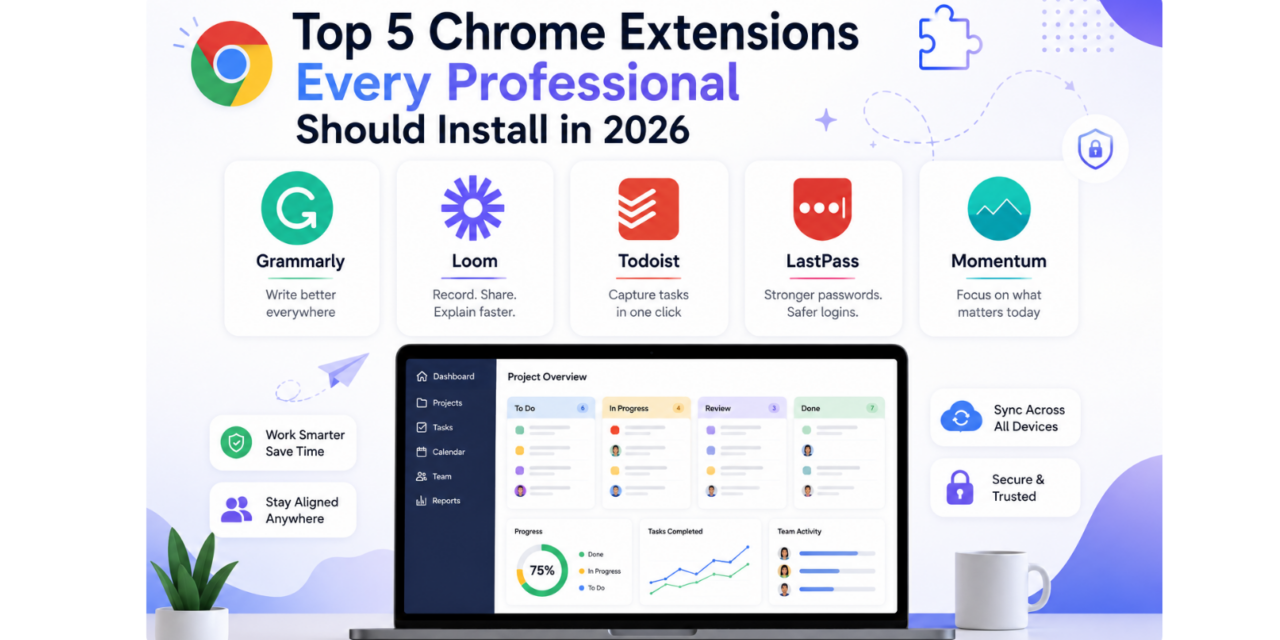
The right browser extension can quietly save hours every week, whether it’s catching typos before they go out in an email, eliminating the need to type a password ever again, or turning a five-minute explanation into a two-minute video link instead of a scheduled call. Most professionals only discover these tools by accident, through a coworker’s recommendation, which means plenty of people are still doing manually what an extension could handle in the background. Here are five Chrome extensions that consistently earn a permanent spot in busy professionals’ toolbars in 2026, each solving a different everyday friction point.
Grammarly
Grammarly checks grammar, tone, and clarity in real time across Gmail, LinkedIn, Slack, and nearly anywhere else you type. Its tone detector is particularly useful before sending emails to clients, flagging language that might come across as harsher or more casual than intended.
Loom
Loom lets you record your screen and camera together and share a link instantly, which has become the fastest way to explain something without scheduling a call. It’s especially useful for async teams that work across different time zones.
Todoist
Todoist’s browser extension lets you turn any email or webpage into a task with one click, capturing to-dos before they get lost in a crowded inbox. Natural language input means typing something like ‘Friday at 3pm’ automatically sets the right due date.
LastPass
LastPass generates and autofills strong, unique passwords for every account, removing the temptation to reuse the same weak password everywhere out of pure convenience. For professionals juggling dozens of client and tool logins across different platforms, it removes one of the most common security weak points entirely, and its secure sharing feature makes handing off access to a teammate far safer than sending a password over chat.
Momentum
Momentum replaces your new tab page with a clean dashboard showing your top daily priority, weather, and a to-do list, giving you a small mental reset every time you open a tab. It sounds minor, but for people who open dozens of tabs a day and lose track of what they were originally trying to focus on, it adds up into a genuinely noticeable improvement in daily focus.
A Quick Word on Extension Security
Browser extensions request fairly broad permissions by nature, often including the ability to read and modify data on every website you visit, so it’s worth being deliberate about what you install rather than grabbing anything with a convincing description. Stick to extensions from well-known companies with a long track record, check the permissions requested against what the extension actually needs to do, and avoid installing anything that asks for far more access than its stated function would require. It’s also good practice to periodically remove extensions you’ve stopped actively using, since an old, unmaintained extension is a more common security risk than most people assume, and browsers rarely prompt you to reconsider permissions once they’ve already been granted.
None of these extensions require a big workflow overhaul, they just remove small amounts of daily friction that add up over a work week when you add them together. Installing even two or three of these is usually enough to notice the time savings within the first few days, and most offer free tiers that are genuinely usable long-term rather than crippled trial versions designed purely to push a paid upgrade. Before installing anything new, it’s worth doing a quick audit of your Chrome extensions list every few months, since old, unused extensions quietly accumulate and can slow your browser down or introduce unnecessary security risk.