A two-minute screen recording often explains something far more clearly than a page of written instructions, especially for software tutorials, bug reports, or quick demos where seeing exactly what to click matters more than reading about it. The right screen recording app should make capturing, lightly editing, and sharing that recording nearly frictionless, since the whole point is saving time compared to writing things out in painstaking detail. A recording that takes longer to produce than the written alternative genuinely defeats its own purpose. Here are five screen recording apps in 2026 that make tutorials and demos genuinely painless to produce.
Loom
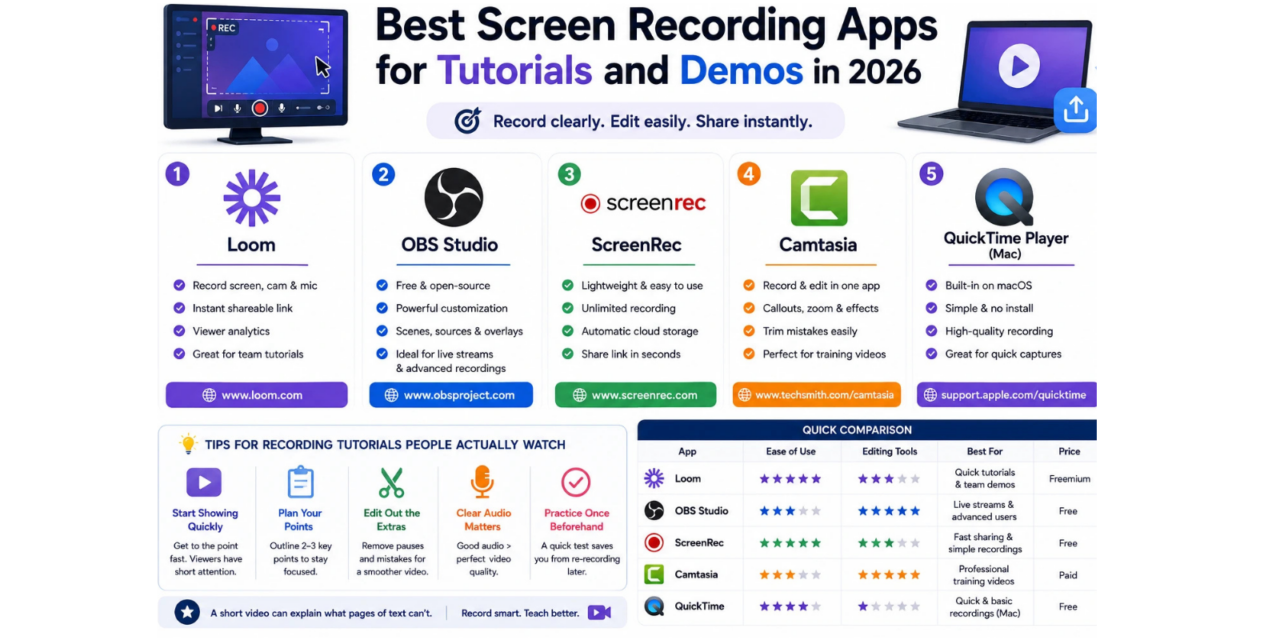
Loom remains the fastest way to record and instantly share a screen recording, generating a shareable link the moment you stop recording without any manual export or upload step. Its viewer analytics also let you see whether the recipient actually watched the whole video, which is genuinely useful for tutorials sent to a team.
OBS Studio
OBS Studio is free, open-source, and vastly more powerful than most casual screen recorders, supporting multiple scenes, sources, and overlays that make it the go-to choice for anyone recording more polished tutorials or live streams rather than quick one-off clips.
ScreenRec
ScreenRec keeps things lightweight and genuinely free for unlimited recording length, with automatic cloud storage of recordings that removes the hassle of managing large local video files on your own drive.
Camtasia
Camtasia pairs recording with a genuinely capable built-in video editor, letting you add callouts, zoom effects, and trim mistakes without needing a separate editing tool, which makes it a strong pick for anyone producing more polished, reusable training content.
QuickTime Player (Mac)
QuickTime Player’s built-in screen recording remains a genuinely solid free option for Mac users who just need a quick, no-frills capture without installing any third-party software at all.
Tips for Recording a Tutorial People Actually Watch
The biggest mistake most people make recording their first tutorial is talking too long before actually showing anything on screen, viewers lose patience fast if a recording opens with a minute of context before the actual demonstration begins. Keep an outline of the two or three key points you need to hit before recording, even a rough mental list prevents rambling and keeps the final video considerably shorter and more watchable than an unplanned, stream-of-consciousness recording. Trimming out dead air and mistakes afterward, even with basic editing tools, makes a genuinely noticeable difference in how professional a tutorial feels, viewers are far more forgiving of a slightly imperfect voice than a recording that meanders for several unnecessary minutes. A short pause to gather your thoughts before hitting record often saves far more editing time than trying to fix a rambling take afterward.
Screen recording has become such an easy habit to build that there’s little reason to keep writing lengthy step-by-step text instructions for anything genuinely visual, whether that’s onboarding a new team member or reporting a bug to a developer. Loom remains the easiest starting point for most people thanks to its instant sharing, while OBS and Camtasia are worth the extra setup time once you’re producing more polished, reusable training content on a regular basis. Whichever tool you pick, do one genuine test recording before anything important, checking audio levels and screen resolution ahead of time saves a genuinely frustrating re-record later on when it matters most.